Article Quick Links
Notifications: You'll receive up to two notifications with a direct link to your Reflection questions, one the day after your Commitment period ends, and a follow-up two days later if you haven't completed them yet. The notification will come via SMS, WhatsApp, or email depending on your settings.
Option 1: Use Your Notification Link
This is the fastest way.- Open the notification on your phone or in your inbox.
- Click the link in the message.
- Answer each Reflection question on the screen.
- Click Submit.
Option 2: Log In and Navigate to Your Commitment
If you missed the notification or prefer to log in directly:
-
Go to [start.actionable.co/login] and sign in to your account.
-
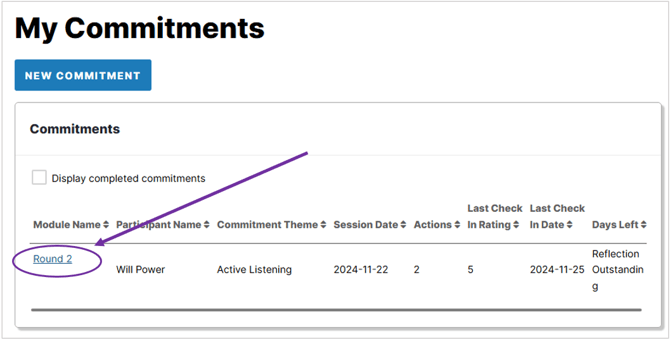
On your dashboard, click your most recent Commitment.
-
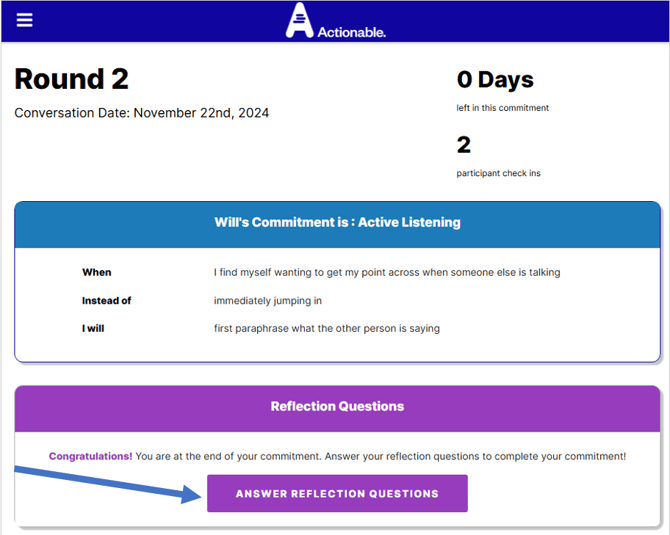
Below your Commitment details, find the Reflection Questions tile.
-
Click Answer Reflection Questions.
-
Answer each question on the screen.
-
Click Submit.