
Quick Links:
Terms:
- Question Type: The format of the question for your participants i.e. Scale, Text, Multiple Choice, All that Apply.
- Question Stage: Where participants see the question in their Habit Builder experience i.e. Prep, Session, Commitment, Reflection.
- Question Component: Specific visualization included for that Question Type i.e. chart, table, average (single value).
Accessing the Preset Question Dashboard
-
Click on Reports (Insights 2.0) in the sidebar
-
Select Preset Reports
-
Select "Question Report"
- Select the correct Dashboard filters for your Program
The Question Report will update the appropriate Question Stages and responses based on your filters.
Downloading Question Visualizations
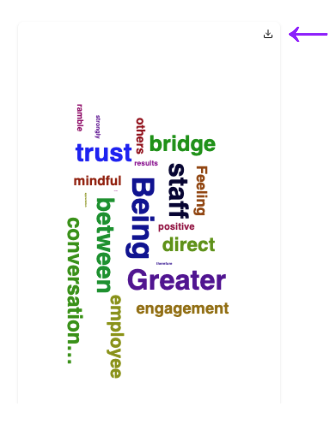
Downloading an individual chart or table:
- Hover over the chart or table
- Click the download icon in the upper right
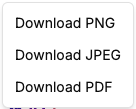
- Choose the download format
- Access the file wherever your downloads are stored
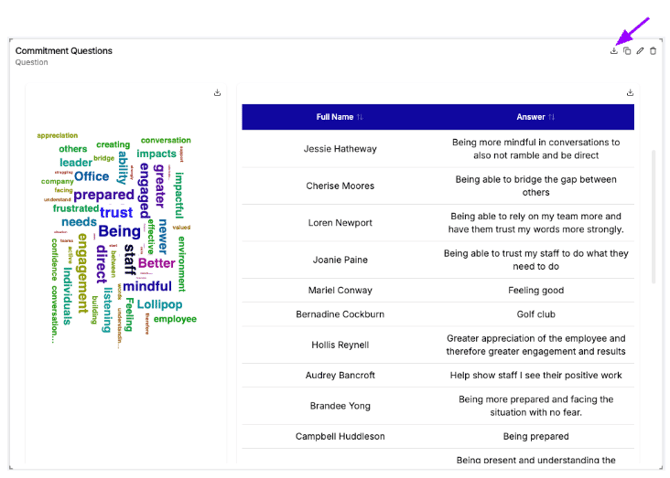
Downloading the Question Stage:
- Hover over the widget for the Question Stage
- Click the download icon in the upper right
- Access the file wherever your downloads are stored
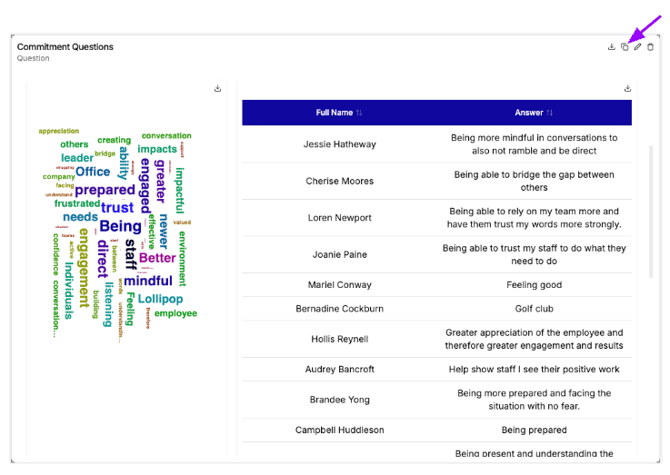
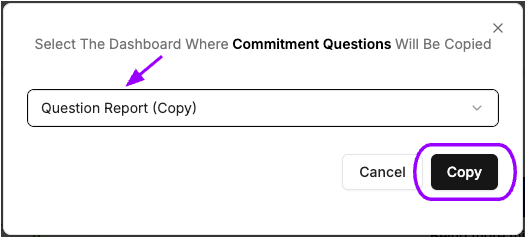
Copying an individual Question Stage:
- Hover over the top of the widget for the Question Stage
- Click the copy icon in the upper right
- Choose the dashboard where you want to save the widget and click Copy
Downloading Question Responses in CSV Format
Question response data is available for export at the Session, Module, or Program level within your Programs.
From any Reports tab:
1. Navigate to your Program, Module, or Session
2. Go to "Reports"
3. Select "Export all Question Responses to CSV" and choose download location.
From your Program Overview Screen:
1. Click the options (3 dots) on a specific Module or Session.
2. Select the Export all Question Responses to CSV option.
Note: You'll only be able to select the export to csv option once there are question responses in your session.