
Question widgets are set up a bit differently than other chart widgets. Each Question Stage is set up as it's own widget, then you adjust which Question Types and Components show up in the widget.
We've pre-set these to accommodate all programs and question volumes. However, there might be types or stages you don't need and you can remove them.
Terms:
- Question Type: The format of the question for your participants i.e. Scale, Text, Multiple Choice, All that Apply.
- Question Stage: Where participants see the question in their Habit Builder experience i.e. Prep, Session, Commitment, Reflection.
- Question Component: Specific visualization included for that Question Type i.e. chart, table, average (single value).
To get started: make sure you working in a custom report you've saved, and not an Actionable Preset. (Learn about copying Presets here).
Open the Widget Editor:
Hover over your widget, then click on the "edit" icon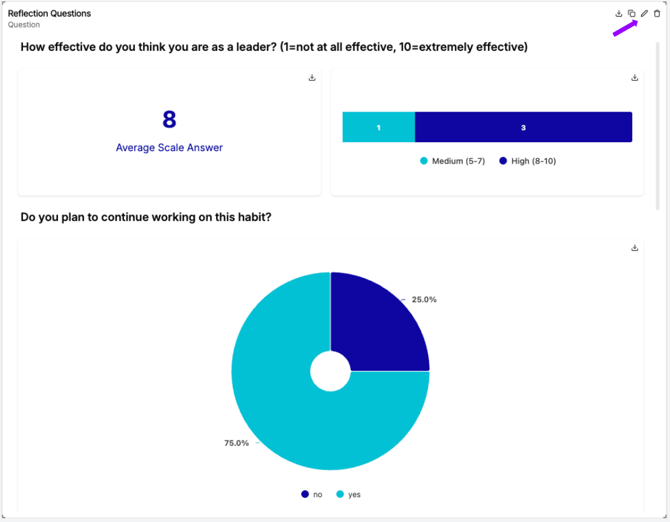
Change question stage:
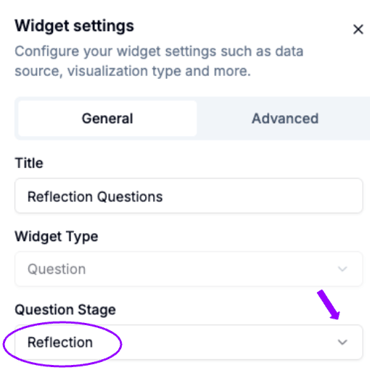
In the widget editor, choose the desired question stage
Change question components:
In the widget editor, for each question format, select the desired components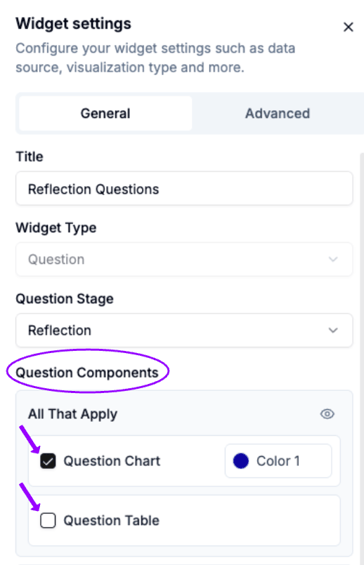
Change colors:
- For each question component, click on the Color box and select the desired color
- Choose from the existing palette or enter a hex code
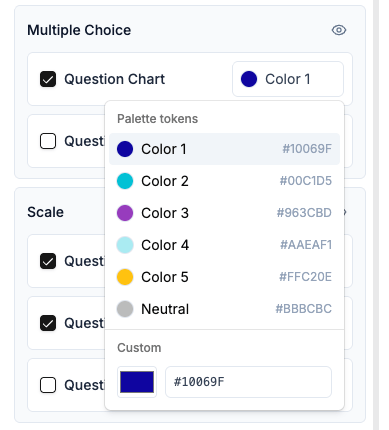
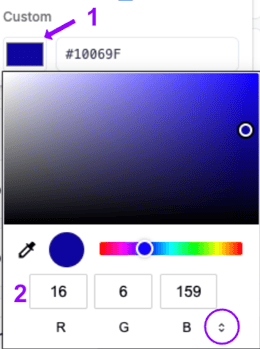
- To choose a custom color, click the color shown, then enter the desired color
- To change the color format (RGB, hex, or HSL), click the arrows shown circled below
Make sure to click Save Changes after any changes!