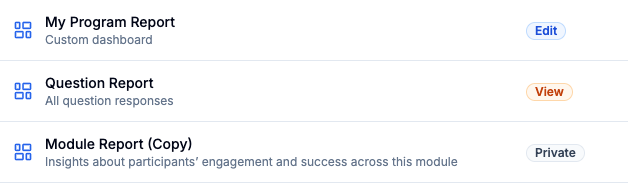
This applies to your custom dashboards, not Actionable Presets. (Learn about copying Presets here).
Quick Links:
Overview
Your reports landing page has 3 tabs:
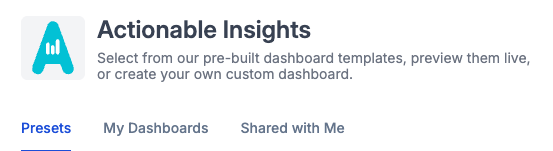
Presets: Dashboards created by Actionable that you can copy and customize
My Dashboards: Custom dashboards you created
Shared with Me: Dashboards others have created and shared with you
Report Organization
In My Dashboards folders and sorting can be used to organize your reports.
Create a Folder
- Click Create Folder
-
Give the folder a name
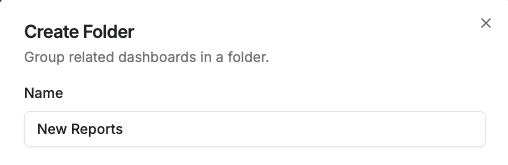
- Choose a location for the folder (My Dashboards is the main space)

- Set a folder color by using the color picker or entering a hex code

- Click Create Folder
Move Reports Into Folders
-
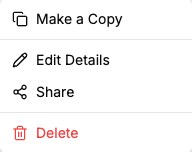
Click the three dots to the right of a report

- Click Edit Details
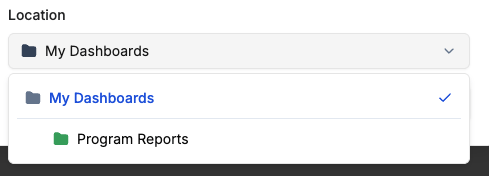
- Choose the location
- Click Save
Sort Reports
-
Click a column header to choose how to sort folders and dashboards

- Name will sort alphabetically
- Access will sort by the level of sharing
- Last Visited will sort by accessed date
- Choose to sort ascending (A to Z, earliest to latest) or descending
- An up arrow indicates ascending sort
- A down arrow indicates descending sort
Report Sharing
You can choose whether the reports you create are accessible to others in your firm.
-
Click the three dots to the right of a report
- Click Share
- Choose the sharing settings
- Private: only you (Reports you create will default to Private)
- Firm View: selected members of your firm can view
- Firm Edit: selected members of your firm can edit
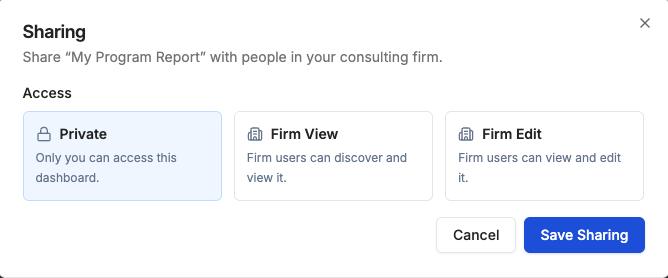
- If you choose Firm View or Firm Edit, choose the specific level
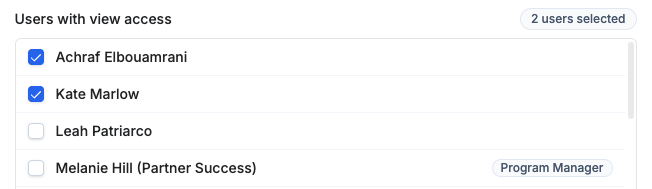
- All Firm Users: everyone in your firm can view or edit
- Specific Users: select specific users who will have access
- Click Save Sharing
- Sharing settings will show in the My Dashboards view