
You'll have some or all of these options available to help tailor both the data and insights you include in your report, and the way you present them. You'll need to make sure you working in a custom report in "My Dashboards", and not an Actionable Preset. (Learn about copying Presets here).
Quick Links:
Video Walkthrough
Adding a Text Widget to Your Dashboard
Steps:
- Open your dashboard or report
-
Click "Add Widget"
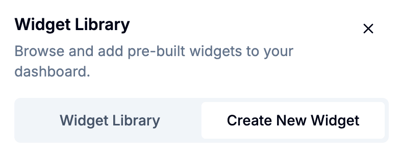
- Make sure you're on the Create New Widget tab.
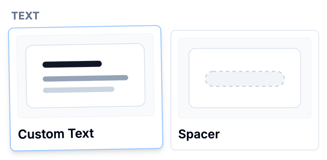
- Scroll to the Text widgets section and drag the Custom Text widget onto the dashboard
Text Widget Options
In edit mode on a text widget, there are many options for customization
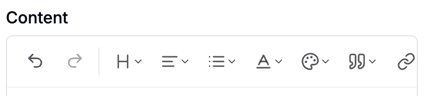
Text size
Choose a heading size to adjust the size of the text. Default size is "paragraph", which you can get back to by deselecting a heading size.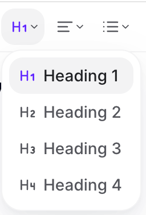
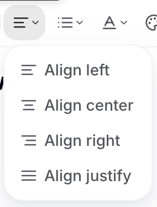
Alignment
Select how to align text. Default is "align left"
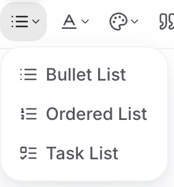
Bullet lists
Add a bullet, ordered, or task list to your text widget
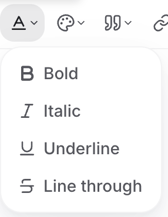
Text format
Format options for the text in the widget
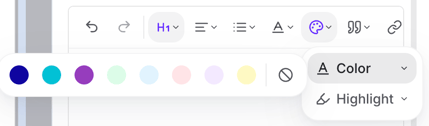
Color
Choose text and/or highlight color
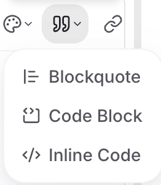
Block options
Options for including code
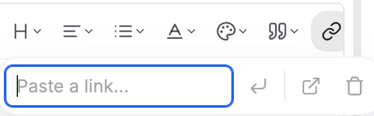
Hyperlink
Add a URL to the widget to direct users to a website
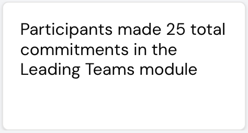
Tokens in Text Widgets
-
In edit mode on your text widget, click "Add data token"
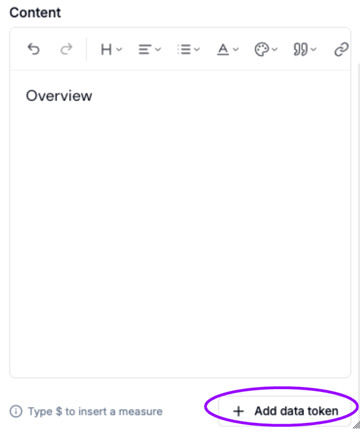
- Scroll or search for the measure or category you want to include
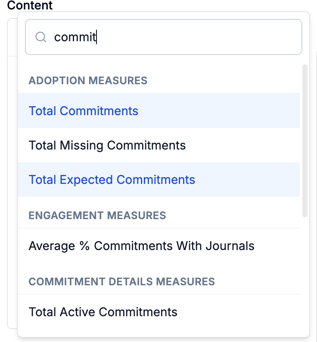
- Click the desired token and it will appear in the widget
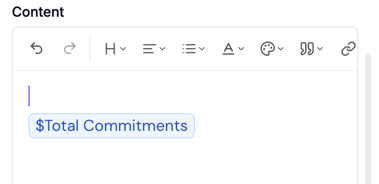
- If desired, add words around the token(s)
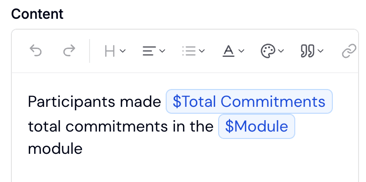
- Click "Save Changes"

- The tokens will update with the filter choices
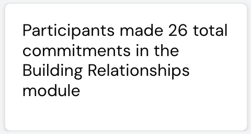
Tip: Typing $ will also bring up a list of possible data tokens. Continuing to type will narrow down options to match what you have typed.