
Quick Links:
Copy a Preset Dashboard
Steps:
- Select a Preset Dashboard (click on the dashboard tile in your Reports screen)
- At the top of the dashboard screen, look for options icons.
- Click the “copy” icon
- Your copied version should automatically open. If it, doesn’t click “Home” and navigate to “My Dashboards” and select your copied report to start editing.
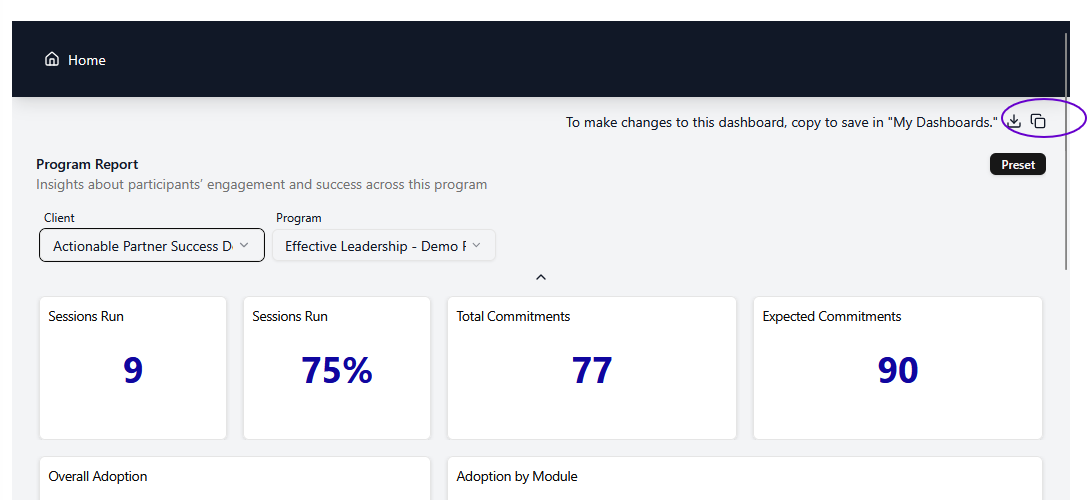
IMPORTANT NOTE: When you copy a Preset dashboard it saves the current version of the Preset only. If Actionable makes changes to the Preset, those changes will not update in your saved version.
Create a New Dashboard
Steps:
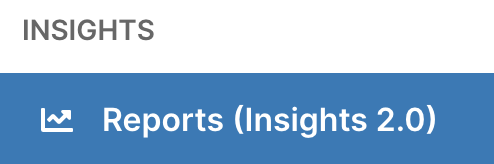
- Navigate to Reports (Insights 2.0) on the lefthand navigation pane
- Click on My Dashboards
- Click Create Dashboard
- In the pop-up window, fill out the dashboard details
- Title
- Description if desired
- Location for the dashboard
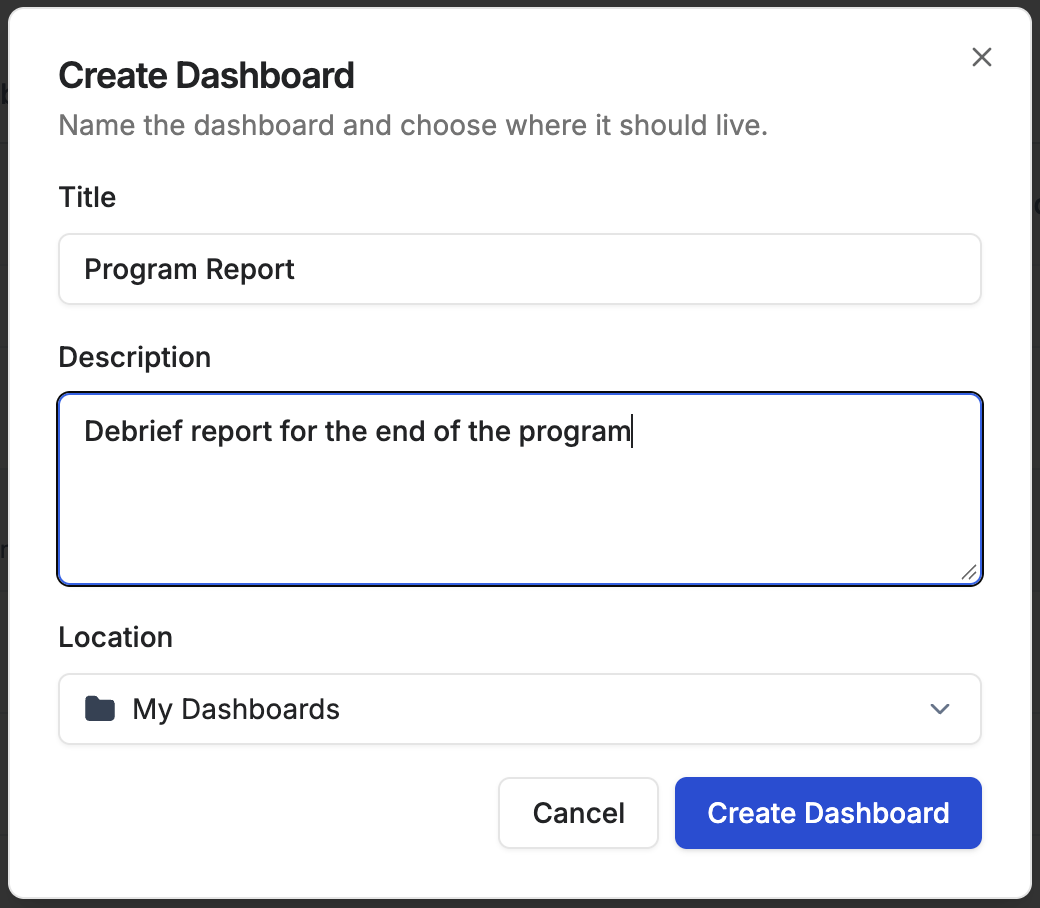
- Click Create Dashboard
- Start adding widgets!
Video Walkthrough of Creating a Dashboard